
Introduction
If you’ve ever searched how to use FaceTime on Android, you’re not alone. FaceTime is widely known for its simplicity, high-quality video, and seamless integration across Apple devices but Android users often assume it’s completely off-limits.
The good news? While FaceTime is not natively available as an Android app, there is a reliable and officially supported way to join FaceTime calls on Android. This guide explains exactly how it works, what’s required, and how Android users can participate without compromising security or quality.
By the end of this article, you’ll clearly understand what’s possible, what isn’t, and the best way to use FaceTime when you’re on an Android device.
What Is FaceTime and Why Android Users Ask About It
Apple FaceTime is a video and audio calling service built into Apple devices such as iPhones, iPads, and Macs. It’s designed for:
- High-quality video and audio calls
- End-to-end encryption
- Seamless integration across the Apple ecosystem
Historically, FaceTime worked only between Apple devices, which created a clear barrier for users on Android. However, Apple introduced a workaround that allows Android users to join FaceTime calls through a web browser.
This change has made cross-platform video communication more practical, especially for remote work, family calls, and client meetings.
Can You Install FaceTime on Android?
No FaceTime cannot be installed on Android as an app.
There is:
- ❌ No official FaceTime app on the Google Play Store
- ❌ No supported APK or downloadable Android version
Any website or app claiming to offer “FaceTime for Android” is either misleading or unsafe.
That said, Android users can still join FaceTime calls through a secure browser-based method, which we’ll cover next.
How to Use FaceTime on Android (Official Method)
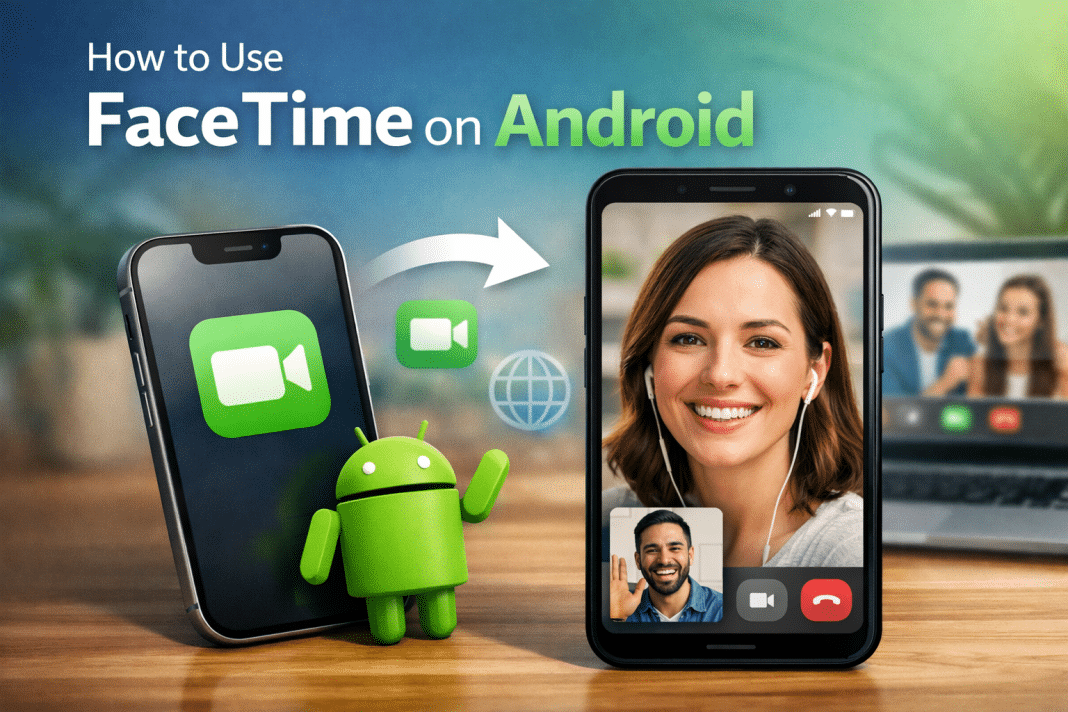
Android users can join FaceTime calls using a web browser link created by an Apple user. This is the only legitimate and supported way to access FaceTime on Android.
What You Need
Before starting, make sure you have:
- An Android phone or tablet
- A modern web browser (Chrome, Edge, or Samsung Internet)
- A stable internet connection
- A FaceTime invitation link from an Apple user
No Apple ID or FaceTime account is required for Android users.
Step-by-Step: Joining a FaceTime Call on Android
Step 1: Apple User Creates a FaceTime Link
The call must be initiated by someone using an Apple device.
On their iPhone, iPad, or Mac, they:
- Open the FaceTime app
- Select Create Link
- Share the link via email, messaging apps, or calendar invites
Step 2: Open the Link on Your Android Device
- Tap the FaceTime link
- It opens in your web browser
- Enter your name when prompted
Step 3: Request to Join
- Tap Join
- Wait for the Apple user to approve your request
Once approved, you’ll enter the FaceTime call directly from your browser.
What Android Users Can and Cannot Do on FaceTime
Understanding the limitations helps set realistic expectations.
What Works Well
Android users can:
- Join FaceTime video and audio calls
- Use the front or rear camera
- Mute or unmute audio
- Turn video on or off
- Participate in one-on-one or group calls
Video and audio quality are generally strong, especially on fast connections.
Current Limitations for Android Users
Android users cannot:
- Start a FaceTime call
- Create FaceTime links
- Use FaceTime effects (Animoji, filters, SharePlay)
- Access FaceTime outside the browser
These restrictions are intentional and align with Apple’s ecosystem design.
Is FaceTime on Android Secure?
Yes. Even when accessed through a browser, FaceTime calls remain end-to-end encrypted.
Key security points:
- Calls are protected from interception
- No FaceTime account is created on Android
- Access is limited to the shared link
- Call hosts control participant approval
As long as the link is shared securely, the experience is considered safe for personal and professional use.
FaceTime vs Other Cross-Platform Video Calling Options
While FaceTime works for Android users, it may not be ideal for every situation. Here’s how it compares with other tools.
When FaceTime Makes Sense
- You’re joining a call hosted by Apple users
- You want a simple, no-install experience
- Privacy and encryption are priorities
When to Consider Alternatives
- Android users need to start calls
- You require advanced collaboration tools
- Regular cross-platform meetings are involved
Popular alternatives include Google Meet, Zoom, and Microsoft Teams, all of which offer full Android apps and cross-platform parity.
Practical Use Cases for Android FaceTime Access
FaceTime’s browser access is particularly useful in scenarios like:
- Family calls where iPhone users initiate the call
- Client meetings hosted by Apple-based teams
- One-time or occasional video conversations
- Interviews or consultations without app downloads
For recurring professional meetings, a platform designed for cross-device use may be more efficient.
FAQ: How to Use FaceTime on Android
Can Android users make FaceTime calls?
No. Android users can only join FaceTime calls using a shared link from an Apple device.
Do I need an Apple ID to use FaceTime on Android?
No. Android users do not need an Apple ID or FaceTime account.
Does FaceTime work on all Android phones?
FaceTime works on most modern Android devices with an updated web browser and camera support.
Is FaceTime free on Android?
Yes. FaceTime calls are free, though standard data charges may apply depending on your internet connection.
Can I use FaceTime on Android tablets?
Yes. Android tablets can join FaceTime calls using the same browser-based method.
Global Accessibility Considerations
FaceTime’s browser-based access works internationally and does not rely on regional restrictions. As long as:
- The Apple user can create a FaceTime link
- The Android user has internet access
The service functions consistently across countries, making it suitable for international communication.
Conclusion
Understanding how to use FaceTime on Android comes down to knowing its boundaries. While Android users can’t install or initiate FaceTime calls, Apple’s web-based access makes it possible to join securely and easily without apps, accounts, or complicated setup.
For occasional cross-platform communication, FaceTime works well. For ongoing collaboration, broader video platforms may offer more flexibility.
If you’re evaluating communication tools for personal or professional use, knowing these distinctions helps you choose the right solution with confidence.